Sign-in Experience
Sign-in Experience lets Admins customize the login page that users see when they access the workspace. You can set the brand color, upload a logo, and configure a favicon — all visible instantly in a live preview before saving.
Access: Available to users with the Admin or Designer role. Navigate via the left sidebar.
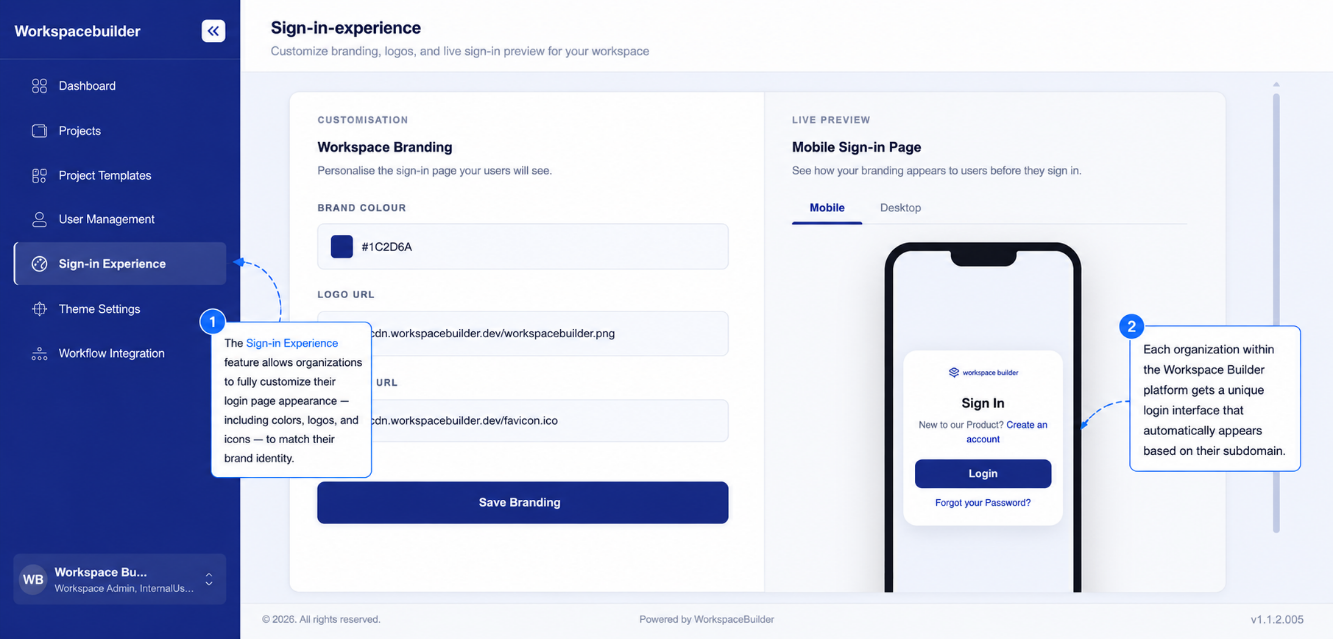
Page Layout
The page uses a split-panel card layout:
| Panel | Description |
|---|---|
| Left — Branding Customization | Input fields for brand color, logo URL, and favicon URL, plus the Save/Update button |
| Right — Live Preview | Real-time preview of the login page in Mobile or Desktop view |
Branding Customization
Brand Color
A combined color swatch + hex text field lets you pick the primary color used across the login page — applied to buttons, links, and highlights.
- Click the colored swatch to open the native color picker wheel.
- Or type a hex code directly into the text field.
- The Live Preview updates immediately to reflect the selected color.
App Logo URL
Enter the URL of the image that will appear at the top of the login form.
- Supports any publicly accessible image URL (PNG, SVG, JPEG).
- The logo is shown in both the Mobile and Desktop preview panels.
Favicon URL
Enter the URL of the favicon that will appear in the browser tab when users open the login page.
- The favicon is also shown inside the Desktop browser chrome preview (tab strip and address bar).
Saving Branding Settings
The save button at the bottom of the Branding Customization panel changes label depending on whether a brand record already exists for the organization:
| State | Button Label |
|---|---|
| No branding saved yet | Save Branding |
| Branding already exists | Update Branding |
Clicking the button saves all three values (color, logo, favicon) to the organization's brand settings. On success a confirmation toast is shown.
Live Preview
The right panel shows a real-time mockup of the login page that updates immediately when any branding value is changed.
Device Tabs
Two tabs let you switch between preview modes:
| Tab | What it shows |
|---|---|
| Mobile | A phone shell mockup of the login form |
| Desktop | A browser window mockup (with tab strip, address bar, and navigation controls) of the login form |
What the Preview Shows
Both mobile and desktop previews render a simplified login page with:
- App logo at the top (from the Logo URL field)
- Sign In heading
- Create an account link — colored with the selected brand color
- Login button — filled with the selected brand color
- Forgot your Password? link — colored with the selected brand color
The Desktop preview also shows a realistic browser chrome with:
- Tab strip showing the favicon and page title
- Address bar with the favicon, lock icon, and the workspace login URL
- Navigation buttons (back, forward, refresh)
How Subdomain-Based Branding Works
Each organization gets a unique login URL based on its subdomain (configured in User Management → Workspace Info). When a user visits that URL:
- The platform detects the organization from the subdomain.
- The saved brand color, logo, and favicon are loaded.
- The login page renders with that organization's branding automatically.
If no subdomain URL is used (i.e., the user visits the main domain), the default Workspace Builder branding is displayed instead.
| Organization | Login URL Pattern |
|---|---|
vendor | vendor.workspacebuilder.com |
abc | abc.workspacebuilder.com |
Example Flow
- Go to Sign-in Experience in the sidebar.
- Use the color picker or type a hex code in the Brand Color field.
- Enter your App Logo URL and Favicon URL.
- Switch between Mobile and Desktop tabs in the Live Preview to check how the login page looks.
- Click Save Branding (or Update Branding) to persist your changes.
- Users who access the workspace via the organization's subdomain URL will see the updated login page.