Roles and Permissions
Roles define what users can do inside a project. Each role is a named group of permissions. You assign roles to users in Users and control which UI elements each role can reach in UI Access Control.
Viewing Roles
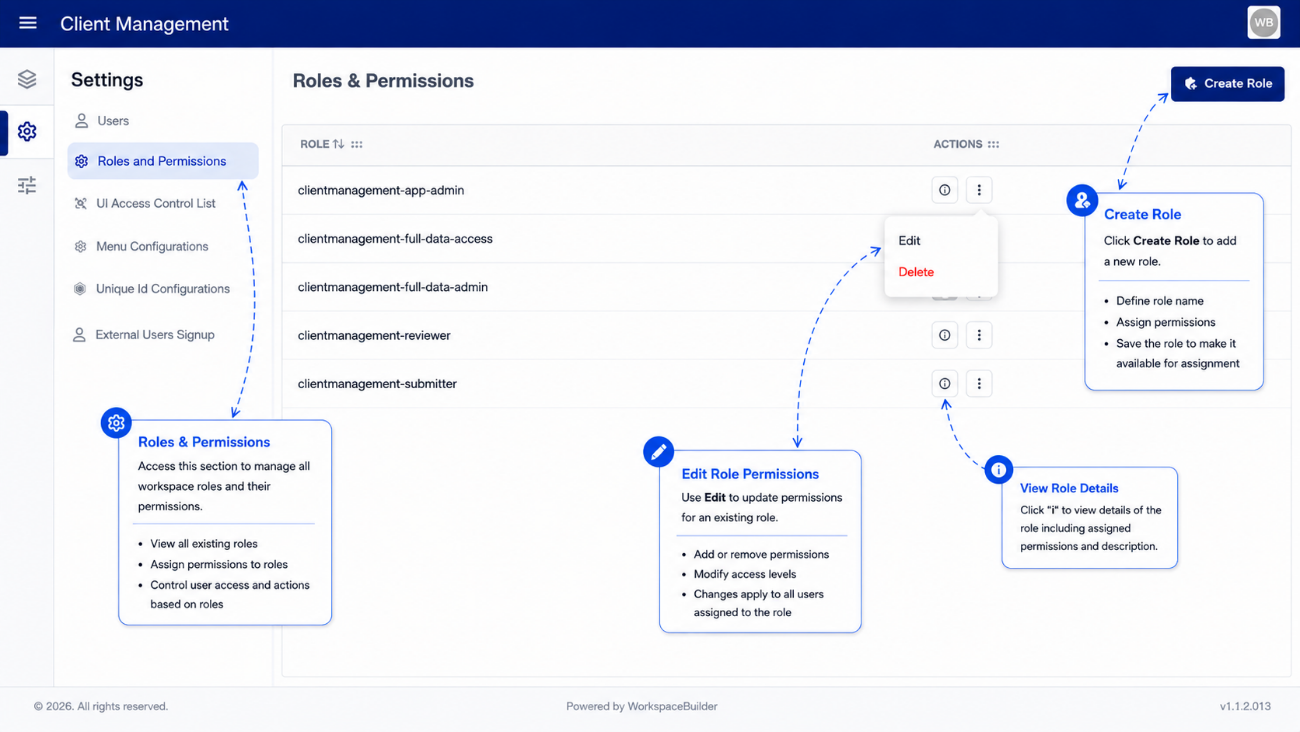
The roles table lists every role defined for this project. Each row shows the role name, and an actions menu for editing or deleting.
Creating a Role
- Click Create Role.
- Enter a Role Name.
- Select the Permissions to grant — permissions are grouped by module. Expand a module to see its individual permissions.
- Click Create to save.
Permissions Structure
Permissions are organised by module (for example, Forms, Submissions, Users). Expand a module to see its individual permission items and check the ones the role should have.
| Concept | Description |
|---|---|
| Module | A functional area of the project (e.g. Submissions, PDF) |
| Permission | A specific allowed action within that module (e.g. Create, View, Delete) |
Editing a Role
- Click the three-dot menu (⋮) on a role row.
- Select Edit.
- Update the role name or permission selections in the slide-in panel.
- Click Save.
Deleting a Role
- Click the three-dot menu (⋮) on a role row.
- Select Delete.
- Confirm in the dialog.
Deleting a role removes it from all users it was assigned to. Review role assignments in Users before deleting.