Workspace Analytics
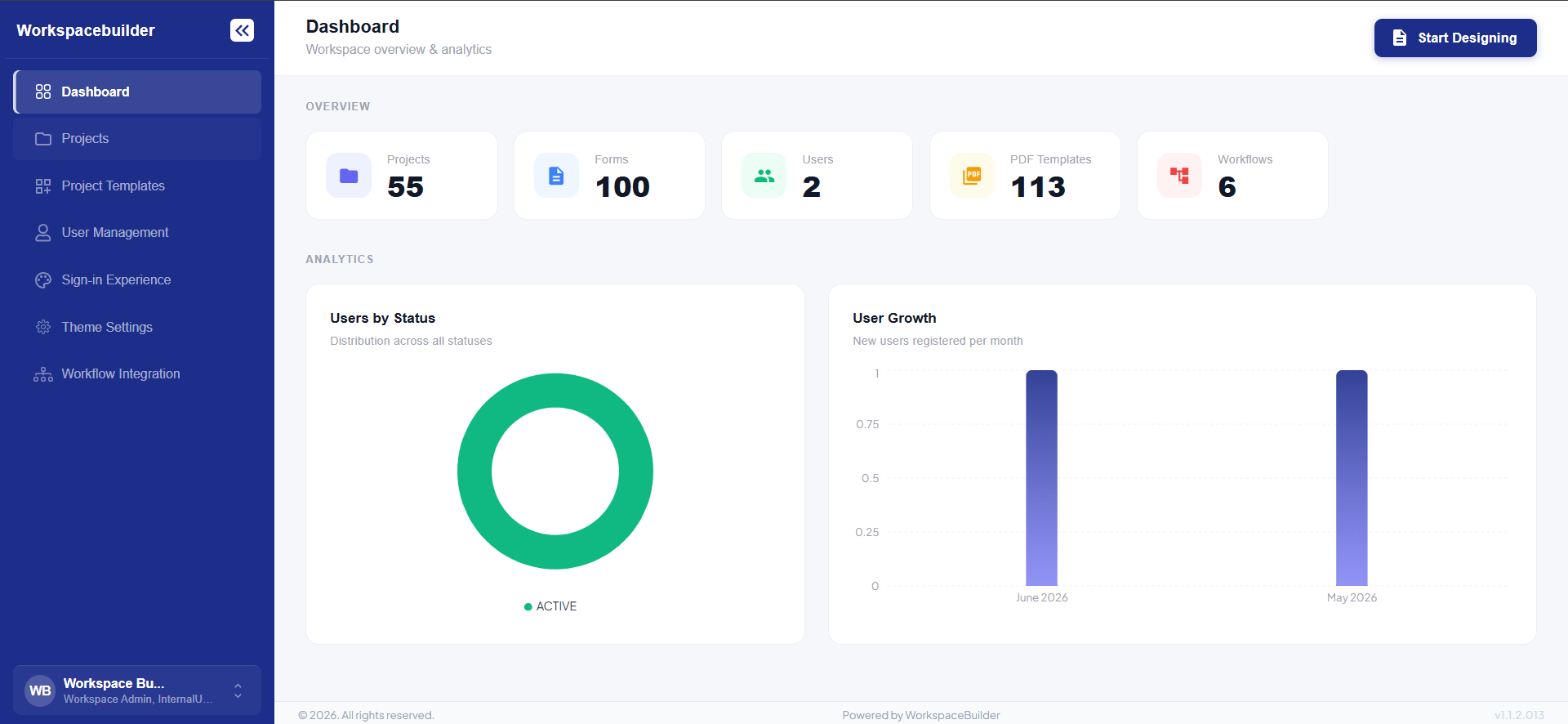
The Workspace Analytics page is the landing page for Admin and Designer users after login. It provides a high-level view of the workspace — showing counts for key resources and analytics charts for user activity.
Access: Only users with an Admin or Designer role see this page. All other users are redirected to the Projects page. On mobile/compact layouts the redirect also happens automatically.
Page Layout
The page is divided into two main sections stacked vertically:
- Overview — stat cards summarising resource counts
- Analytics — charts showing user distribution and growth
A sticky header sits at the top with a Start Designing button that switches the app to Design Mode and navigates to Projects.
Stat Cards
Five cards are displayed in a responsive grid. Each card shows an icon, a label, and a live count fetched from the API.
| Card | Icon | API endpoint |
|---|---|---|
| Projects | Folder | /ps/web/org-projects-count |
| Forms | Description | /ms/form/analytics/getFormsCount |
| Users | People | /ps/web/org-users-count |
| PDF Templates | PictureAsPdf | /ps/web/org-pdftemplates-count |
| Workflows | AccountTree | /ps/web/org-flows-count |
Cards have a subtle hover effect (slight lift + shadow).
Analytics Charts
Users by Status (Donut Chart)
Shows how users are distributed across statuses — ACTIVE, PENDING, and INACTIVE.
- Color coding: green for ACTIVE, amber for PENDING, red for INACTIVE
- If no data is available a placeholder with a trending-up icon is shown
User Growth (Bar Chart)
Shows new users registered per month as a vertical bar chart with a blue gradient fill.
- X-axis: month name (e.g. "March 2026")
- Y-axis: user count
- If no data is available a placeholder is shown
Organization Setup
When a user logs in for the first time without an existing organization, one of two flows runs:
Single / No Org — Setup Modal
A modal prompts the user to enter an organization name. The name is validated against a blocked-org list before being created. After creation the user is logged out and redirected to re-login.
Multiple Orgs — Re-login Prompt
If the user belongs to two or more organizations, a dialog lists up to five org names (with a "+N more" chip for extras) and asks them to re-login and select the correct organization.
Theme on Load
On load, the page fetches the organization's saved theme and applies it to the sidebar and topbar. If no theme is saved, the default blue palette (#1C2D8A) is used. The active mode (Design Mode / User Mode) determines which palette is applied.
Role-Based Behavior
| Role | Behavior |
|---|---|
Admin (Workspace Admin) | Sees Workspace Analytics + Start Designing button |
Designer (Designer) | Sees Workspace Analytics + Start Designing button |
| Any other role | Redirected to Projects |