Form Categories
WorkspaceBuilder supports four types of forms. Each type serves a distinct purpose and is designed for different use cases — from simple single-page data collection to interactive analytics dashboards.
Choose the form type that best fits your workflow when creating a new form.
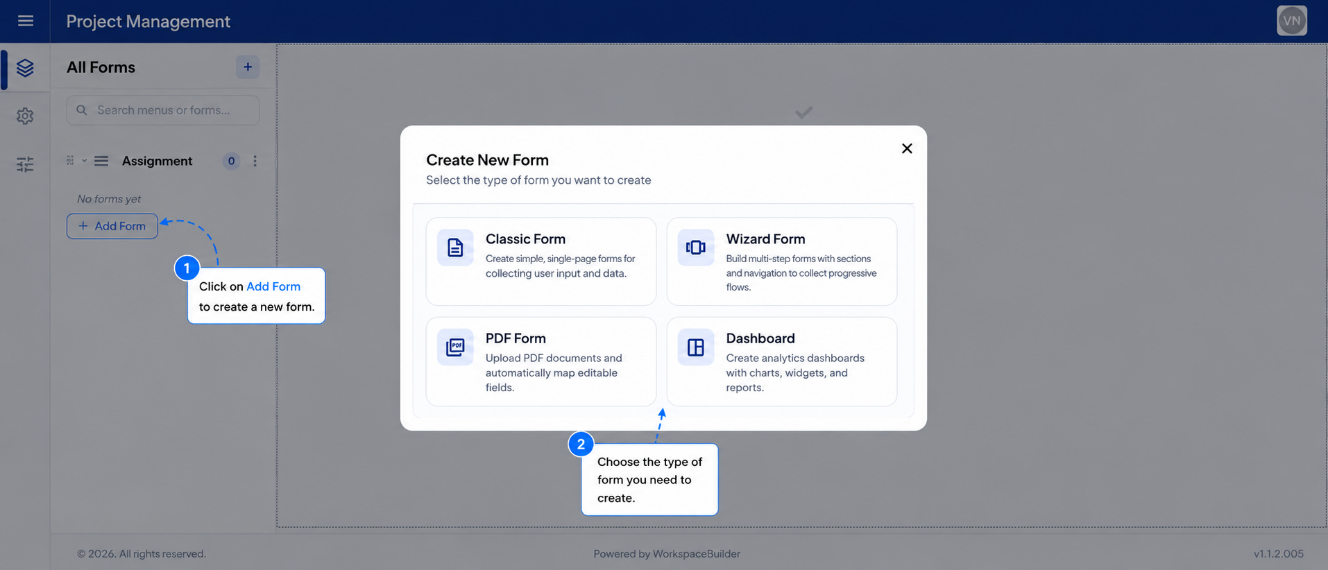
Classic Form
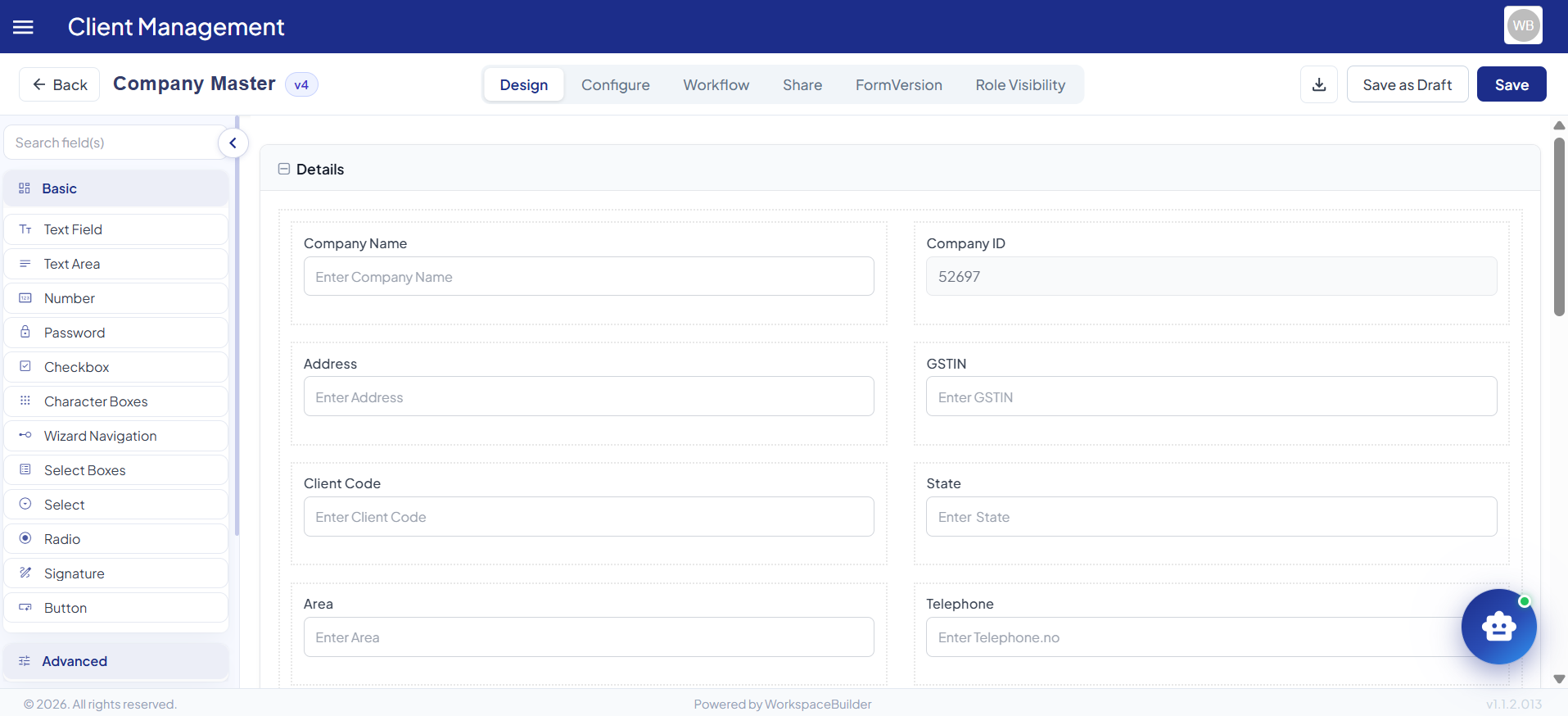
A Classic Form provides a single-page layout where all form fields are displayed together on one screen.
Use this when you want users to complete the form quickly without navigating through multiple steps. This layout is simple, efficient, and allows users to view and fill all fields at once before submitting.
Best suited for:
- Short to medium-length forms
- Quick data submissions (contact forms, feedback, registrations)
- Situations where users benefit from seeing the full form before submitting
Key characteristics:
- All fields rendered on a single scrollable page
- No step-by-step navigation required
- Users can review all inputs before final submission
- Supports all standard form components — text fields, dropdowns, file uploads, grids, and more
- Can be embedded into portals or shared as a standalone link
Classic forms are the default form type and the fastest way to get started with form building on the platform.
Wizard Form
A Wizard Form breaks a form into smaller, guided sections displayed one at a time, leading the user through the process step by step.
This approach significantly improves the user experience for lengthy or complex forms by reducing cognitive load and making navigation more manageable.
Best suited for:
- Long forms with many fields
- Forms where data is logically grouped into sections (e.g., personal info → employment → documents)
- Onboarding flows, multi-stage applications, and multi-section surveys
How It Works:
- When you select Wizard as the form type during creation, the form builder automatically switches to a wizard-style layout.
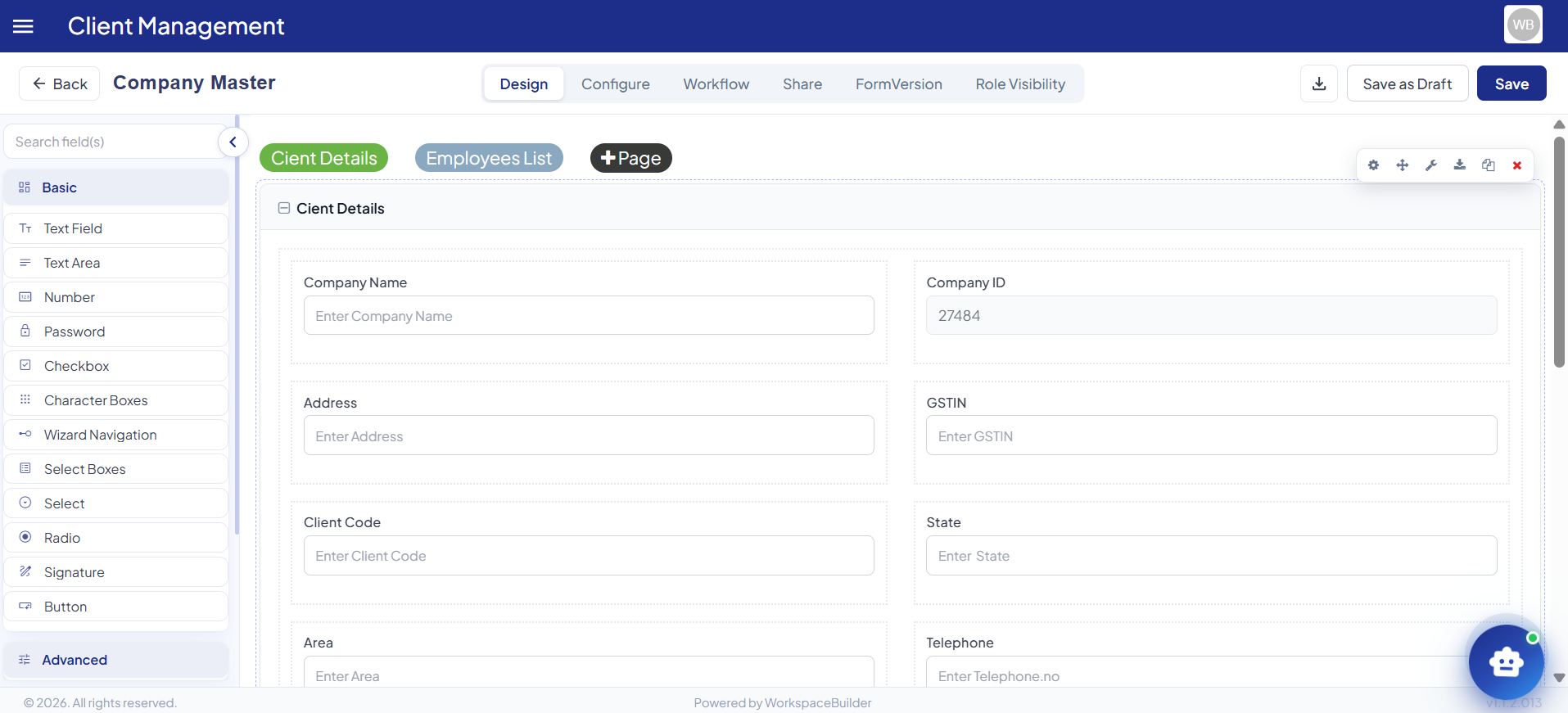
- The wizard structure uses the Panel layout component to define each page or step.
- Upon switching to the wizard format, all existing fields are automatically placed inside a Panel, representing the first step.
- Additional steps are created by adding more Panel components to the form.
Navigation:
When rendered, the Wizard form provides navigation controls at the bottom of each step:
- Cancel — exits the form without submitting.
- Previous — returns the user to the previous step.
- Next — advances to the next step (with optional validation per step).
Users can also jump between steps using the header tabs at the top of the form, giving them flexibility to review or edit earlier sections before submitting.
Key characteristics:
- Each Panel component represents one step of the wizard
- Per-step validation can be applied to prevent advancing without complete data
- Progress is tracked visually across the header tabs
- Supports all standard form components within each step
- Fully compatible with form versioning, approval workflows, and analytics
PDF Form
A PDF Form allows you to upload an existing PDF document and overlay interactive form fields directly onto it — modernising traditional static PDFs without redesigning them from scratch.
For a complete guide on building and configuring PDF forms, see the PDF Forms documentation.
- Upload & convert — upload any PDF and let the platform detect existing fields automatically
- Overlay components — drag-and-drop text fields, checkboxes, signatures, file uploads, and more on top of any page
- Checkbox & radio configuration — set up mutually exclusive radio groups and apply CSS shape and fill classes
- Font size control — set a global PDF font size or control it per field via overlay height
- Full platform support — PDF forms work with submissions, versioning, approval workflows, and role-based access
Best suited for:
- Digitising legacy paper or PDF forms
- Legal documents, consent forms, and compliance paperwork
- Any scenario where the original PDF layout must be preserved
How It Works:
- Select PDF Form when creating a new form.
- Upload your PDF file when prompted.
- The platform automatically detects existing form fields in the PDF.
- Use the drag-and-drop builder to add or reposition interactive overlay components on top of the PDF.
- The completed form functions like any other form in the platform — it supports submissions, versioning, and workflow integration.
Key characteristics:
- Preserves the original PDF layout exactly as uploaded
- Overlay fields can be freely positioned and resized on any page
- Supports text fields, checkboxes, radio buttons, signatures, file uploads, and more
- Detected fields from the original PDF are mapped automatically where possible
- PDF forms are fully integrated with submission tracking and approval workflows
- Replacing the underlying PDF is supported if no submissions have been recorded
Dashboard
A Dashboard is a dedicated canvas for building analytics and reporting views using charts, widgets, and data visualisations — without writing any code.
Unlike the other form types, a Dashboard does not collect user input. Instead, it presents data from your forms and submissions in a structured, interactive display.
For a complete guide on all dashboard components and configuration, see the Dashboard documentation.
- Bar Chart — compare values across categories with vertical or horizontal bars
- Line & Area Charts — track trends and volume over time
- Pie Chart — visualise part-to-whole proportions as slices
- Scatter Chart — spot correlations and outliers across two numeric dimensions
- Radar Chart — compare multiple attributes per entity on radial axes
- Radial Bar Chart — show progress or proportions in a circular arc layout
- Funnel Chart — map pipeline stages and conversion drop-off
- Bar + Line (Combo) — overlay a line series on top of bar series for dual-metric views
- KPI Card — surface a single headline metric with trend indicator
- Table — display raw or aggregated submission records in row-column format
Best suited for:
- Project managers and team leads who need at-a-glance reporting
- Monitoring submission trends, counts, and form activity over time
- Embedding analytics directly within the same project as your forms
- Custom reporting views tailored to specific teams or roles
How It Works:
- Select Dashboard when creating a new form entry in the sidebar.
- Give the dashboard a name and confirm.
- On the dashboard canvas, click Create Dashboard to initialise the dashboard builder.
- Use the dashboard designer to add widgets, charts, and data panels.
- Once configured, the dashboard is viewable directly within the project alongside your other forms.
Key characteristics:
- Dedicated full-width canvas — the sidebar collapses automatically for more viewing space
- Powered by a separate dashboard designer with drag-and-drop widget placement
- Supports multiple visualisation types: charts, counters, tables, and more
- Dashboard data is scoped to the current project and its form submissions
- Dashboards can be edited at any time by clicking Edit in the header
- Switches between view mode (live data) and edit mode (designer) seamlessly
- Version control and approval workflows apply to dashboards the same as other form types
- The Export option is available to share dashboard configurations
Note: Analytics toggles available on Classic, Wizard, and PDF forms are separate from the Dashboard form type. The Dashboard type is used to build full reporting views, while the analytics toggle on other form types enables per-form submission reporting.