Form Approval
The Form Approval page is an admin-only workspace that lists every form version currently awaiting review. When a form designer submits changes for approval, the form enters a PendingApproval state. An administrator must then approve or reject the changes before they go live for end users.
Who Can Use This Page
| Role | Access |
|---|---|
| Administrator | Full access — can preview, approve, and reject forms. |
| Form Designer | No access to this page — designers submit forms for approval from the Design tab. |
This page is only visible to users with administrator permissions in the project.
How a Form Reaches Pending Approval
- A designer makes changes to a form in the Design tab.
- They click Save / Submit and enter change notes describing what was changed.
- The form version status becomes
PendingApproval. - The form appears on this page for admin review.
Until an admin approves the changes, end users continue to see the previously published version of the form.
Overview
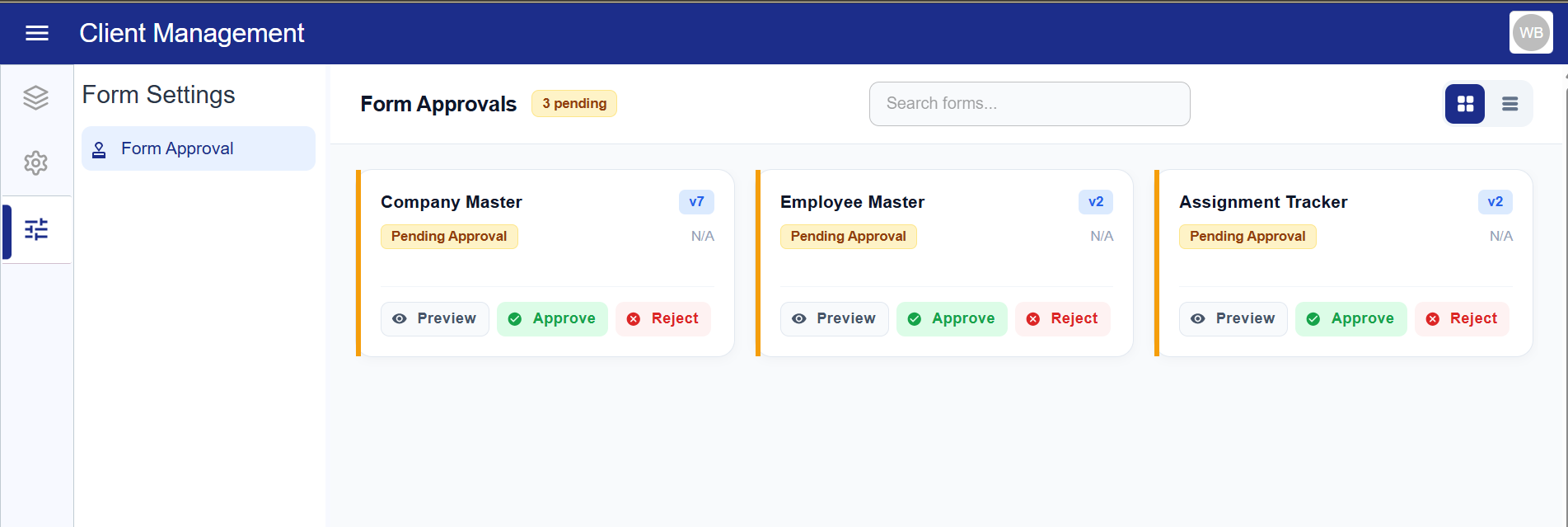
When you open the Form Approval page, you see all forms in the project that have PendingApproval status. The page supports two view modes and a search filter.
View Modes
Toggle between Card View and Table View using the icons in the top-right corner of the page.
| View | Best For |
|---|---|
| Card View | Quick visual scan — each form appears as a card with its name, version, status, last updated date, and change notes. |
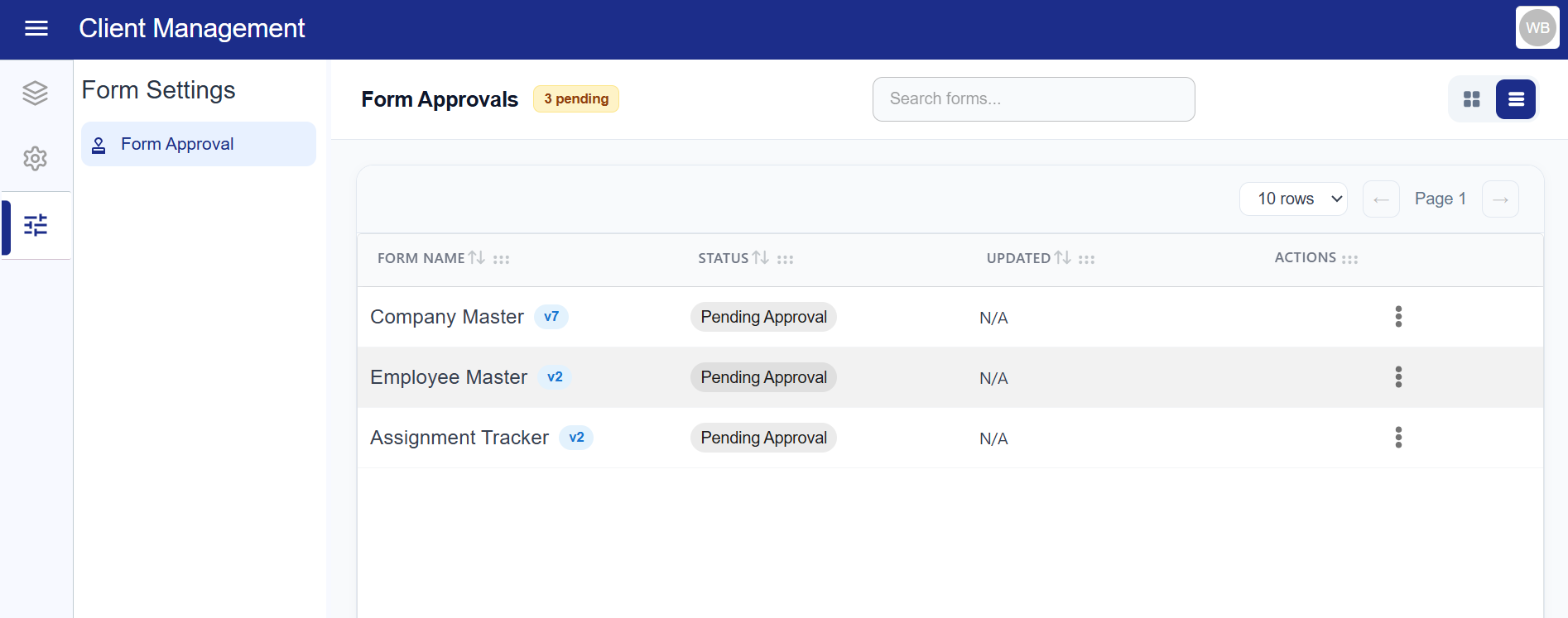
| Table View | Reviewing many forms at once — paginated table with columns for Form Name, Status, Updated, and Actions. |
Card View
Each pending form appears as a card containing:
| Element | Description |
|---|---|
| Form Name | The title of the form. |
| Version badge | The version number (e.g., v3) of the pending submission. |
| Status chip | Always shows Pending Approval (orange) for forms on this page. |
| Updated | The date and time of the last update. |
| Change Notes | A highlighted amber note box showing the designer's description of what changed. Shown only if notes were provided. |
| Preview | Opens a read-only preview of the form as it will look if approved. |
| Approve | Opens the approval confirmation dialog. |
| Reject | Opens the rejection dialog where a reason must be entered. |
Table View
The table view shows the same forms in a row-based layout, useful when there are many pending approvals to manage.
Table Columns
| Column | Description |
|---|---|
| Form Name | Form title with version badge. |
| Status | Color-coded status chip. |
| Updated | Last updated timestamp. |
| Actions | A three-dot menu ( ⋮ ) with Preview, Approve, and Reject options. |
Filtering and Pagination
- Use the Search bar to filter forms by name.
- Use the rows per page selector to show 5, 10, or 20 entries.
- Use the ← → pagination buttons to move between pages.
Status Color Reference
| Status | Color | Meaning |
|---|---|---|
PendingApproval | Orange | Submitted and awaiting admin action. |
Approved | Green | Approved and live. |
Rejected | Red | Rejected — returned to the designer for revision. |
Draft | Gray | Not yet submitted. |
Previewing a Pending Form
Click Preview (on a card) or select Preview from the three-dot menu (in table view) to open a read-only modal showing exactly how the form will look if approved.
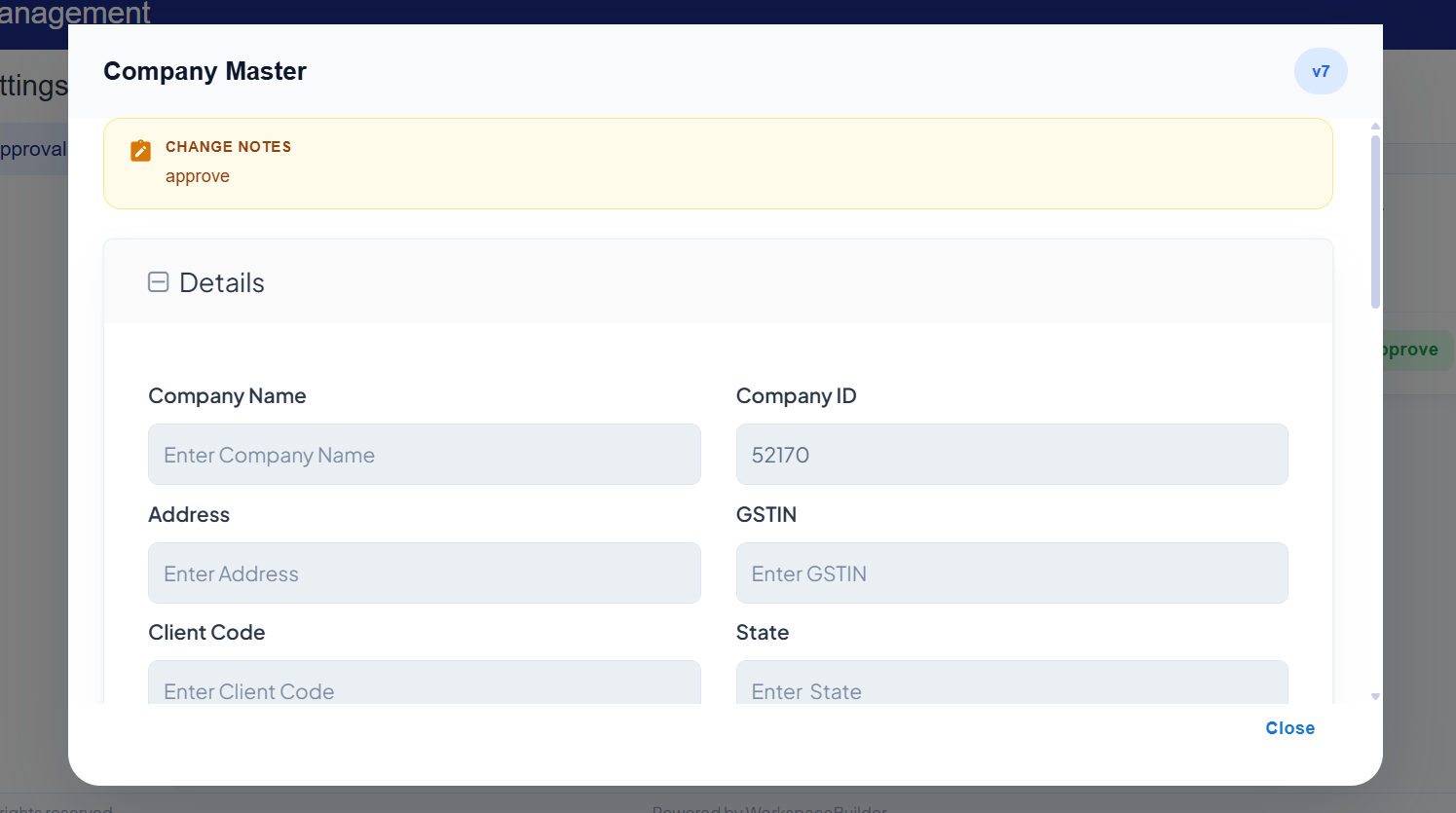
Preview Modal Contents
- Form title and version badge in the header.
- Change Notes banner (amber) at the top of the form, showing what the designer described as changed — visible only inside the preview.
- The full form rendered in read-only mode — no data can be submitted.
- For dashboard forms, the saved dashboard view is loaded.
- For PDF forms, the PDF-backed layout is shown.
Click Close to dismiss the preview without taking any action.
Approving a Form
Approving a form publishes the pending version — it becomes immediately live for all end users.
Steps
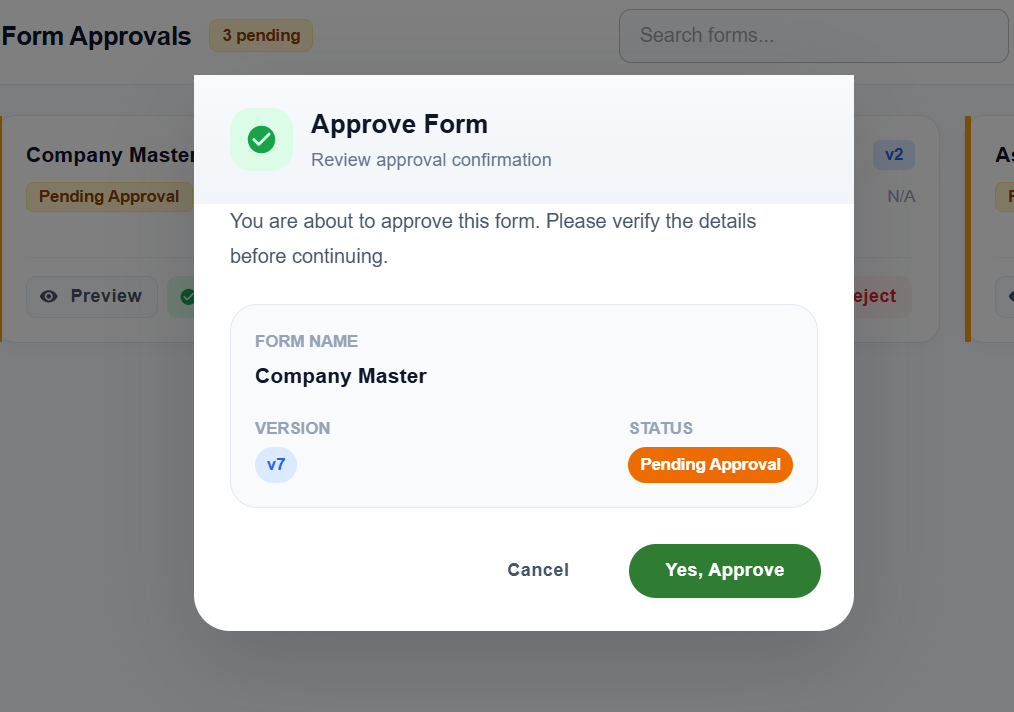
- Click Approve on the form card, or select Approve from the three-dot menu in table view.
- A confirmation dialog appears showing:
- Form Name
- Version (e.g.,
v3) - Status (
Pending Approval)
- Click Yes, Approve to confirm.
What Happens After Approval
- The form version status changes from
PendingApprovaltoPublished. - End users immediately see the newly approved version when they open the form.
- The form disappears from the Pending Approval list.
You can click Cancel at any point in the dialog to abort without making any changes.
Rejecting a Form
Rejecting a form returns it to the designer for revision. The changes are not published.
Steps
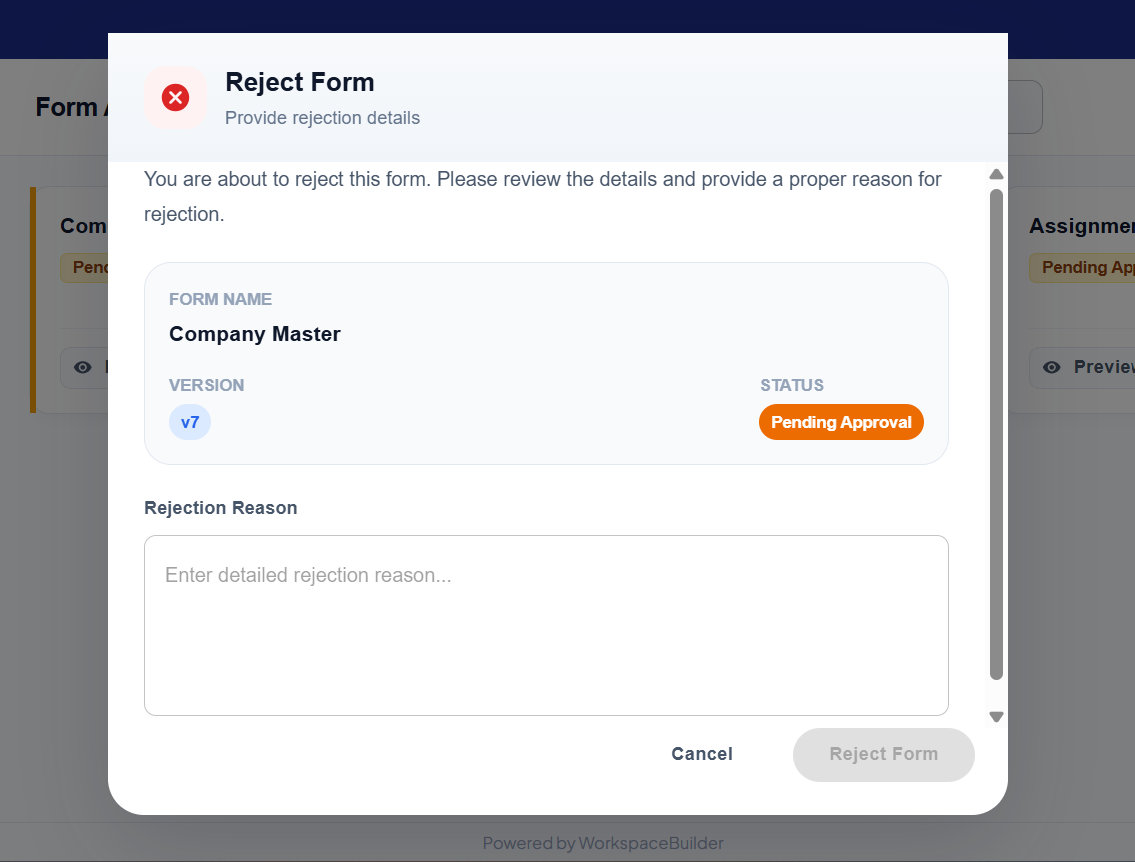
- Click Reject on the form card, or select Reject from the three-dot menu in table view.
- A rejection dialog appears showing the form name, version, and current status.
- In the Rejection Reason text field, enter a clear explanation of why the form is being rejected.
- The Reject Form button is disabled until a reason is entered.
- Click Reject Form to confirm.
What Happens After Rejection
- The form version status changes to
rejected. - The designer is notified and can open the form in the Design tab to revise and resubmit.
- End users continue to see the last published version of the form unchanged.
- The form disappears from the Pending Approval list.
Providing a clear rejection reason helps designers understand exactly what needs to be fixed before resubmitting.
Empty State
If no forms are currently pending approval, the page displays:
No Forms Pending Approval
All forms are reviewed and up to date. Pending approval requests will appear here once submitted.
Approval Lifecycle Summary
Designer submits form
        ↓
  PendingApproval   ←──────── designer revises and Resubmits
        ↓                              ↑
  Admin reviews                  rejected
        ↓
    published  (live for users)
Quick Reference
| Task | Steps |
|---|---|
| See all pending forms | Open the Form Approval page |
| Switch to table view | Click the table icon (top-right) |
| Search for a specific form | Type in the Search bar (table view) |
| Preview a form before deciding | Click Preview on the card or in the three-dot menu |
| Approve a form | Click Approve → confirm in the dialog |
| Reject a form | Click Reject → enter a reason → click Reject Form |