Form Version History
The Form Version History tab gives you a complete audit trail of every saved state of your form. You can browse all past versions, preview how a form looked at any point in time, and restore an older version back into the designer — all without losing any existing data.
Overview
Every time a form goes through a lifecycle change (draft, approval, publish), a new version snapshot is automatically captured. The Form Version History page displays these snapshots in a table sorted from the most recent to the oldest.
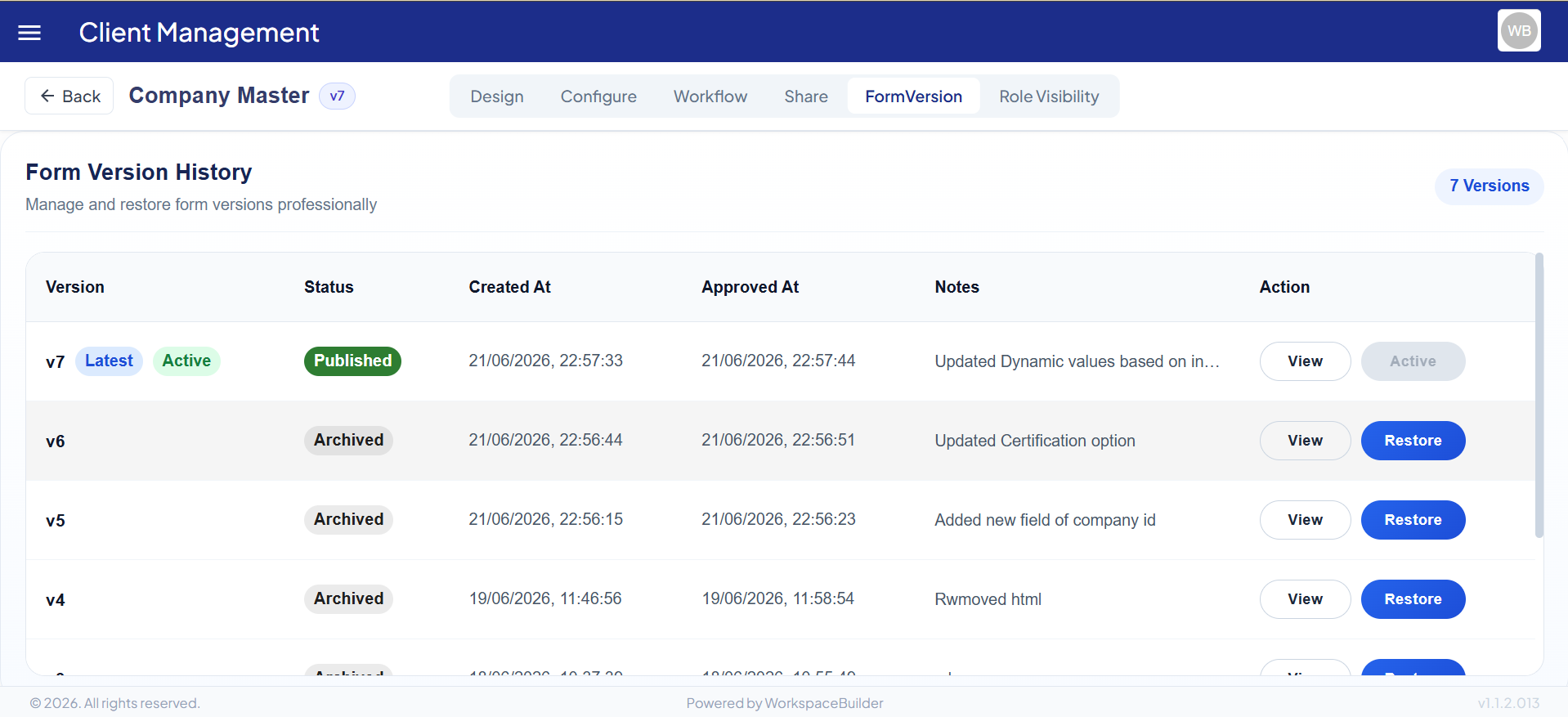
| Column | Description |
|---|---|
| Version | The sequential version number (e.g., v1, v2). A Latest badge marks the most recent entry. An Active badge marks the currently live version. |
| Status | The lifecycle state of that version — published, draft, pending_approval, or archived. Each status is color-coded for quick recognition. |
| Created At | The date and time this version was created. |
| Approved At | The date and time this version was approved (if applicable). Displays — if not yet approved. |
| Notes | Change notes or comments attached to this version. Hover over a long note to read the full text via tooltip. |
| Action | Two action buttons — View and Restore — available per version row. |
Version Status Colors
Status chips use color coding to let you identify a version's state at a glance.
| Status | Color | Meaning |
|---|---|---|
published | Green | This version is live and accessible to end users. |
draft | Orange / Yellow | Work in progress — not yet submitted for review. |
pending_approval | Blue | Submitted for review but awaiting approval. |
archived | Gray | Superseded by a newer version; no longer active. |
Version Badges
Each version row can display up to two inline badges alongside the version number:
- Latest — Shown on the first row (highest version number). Indicates this is the most recently created version.
- Active — Shown when a version is the currently deployed/active version of the form. The Restore button is disabled for this row since it is already active.
Viewing a Version
Click the View button on any row to open a read-only preview of that form version in a modal dialog.
What the preview shows
| Form Type | Preview Behavior |
|---|---|
| Standard form | Renders all fields in read-only mode using the saved component schema. |
| PDF form | Renders the PDF-backed form layout in read-only mode. |
| Dashboard form | Loads the saved dashboard view associated with that version. |
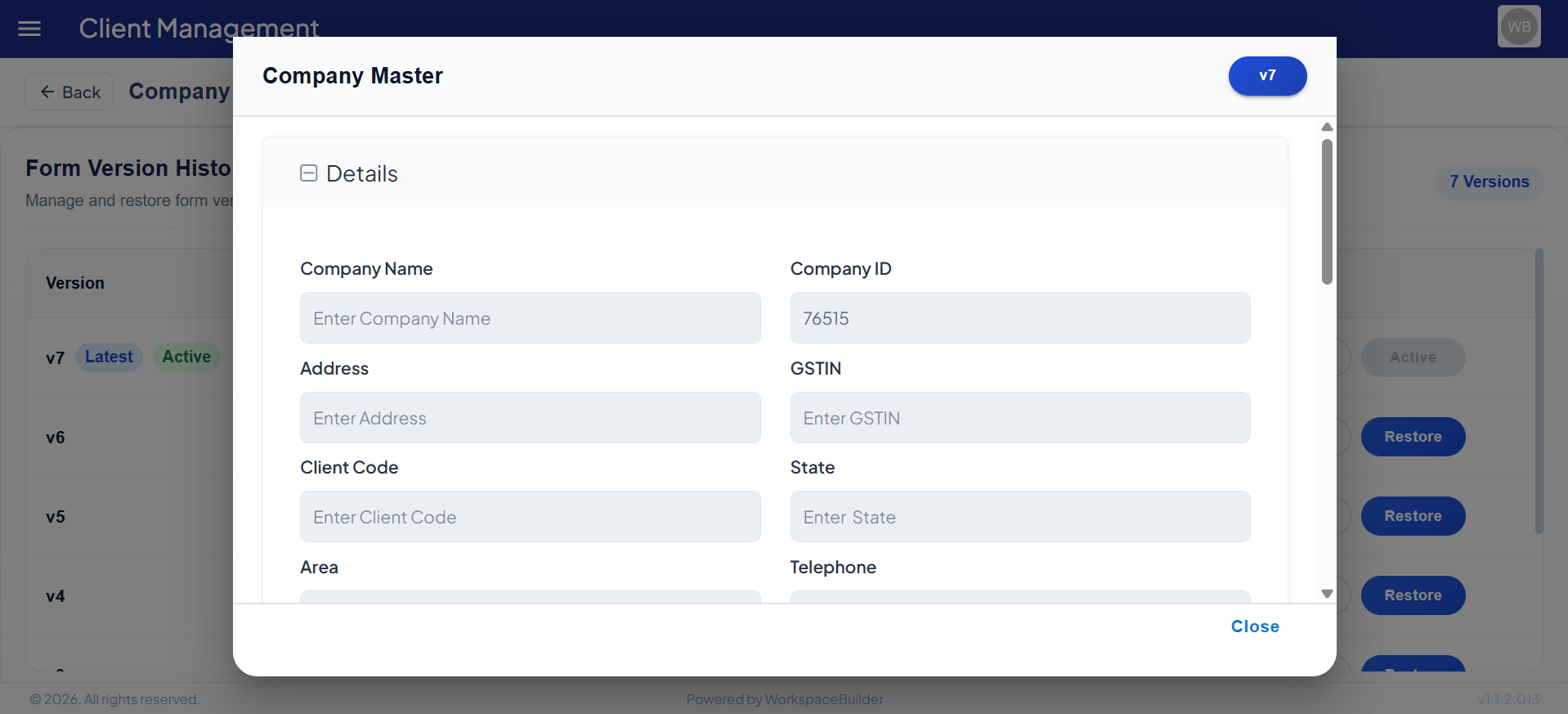 | |
| The preview dialog header displays: |
- The form title for that version.
- A version badge (e.g.,
v3) confirming which snapshot you are viewing.
The form is shown in read-only mode — no data can be submitted from the preview.
Restoring a Version
Restoring lets you roll back the form's component structure to any previous version. This is useful when a recent change introduced errors or when you need to revert to a previously approved layout.
How to restore
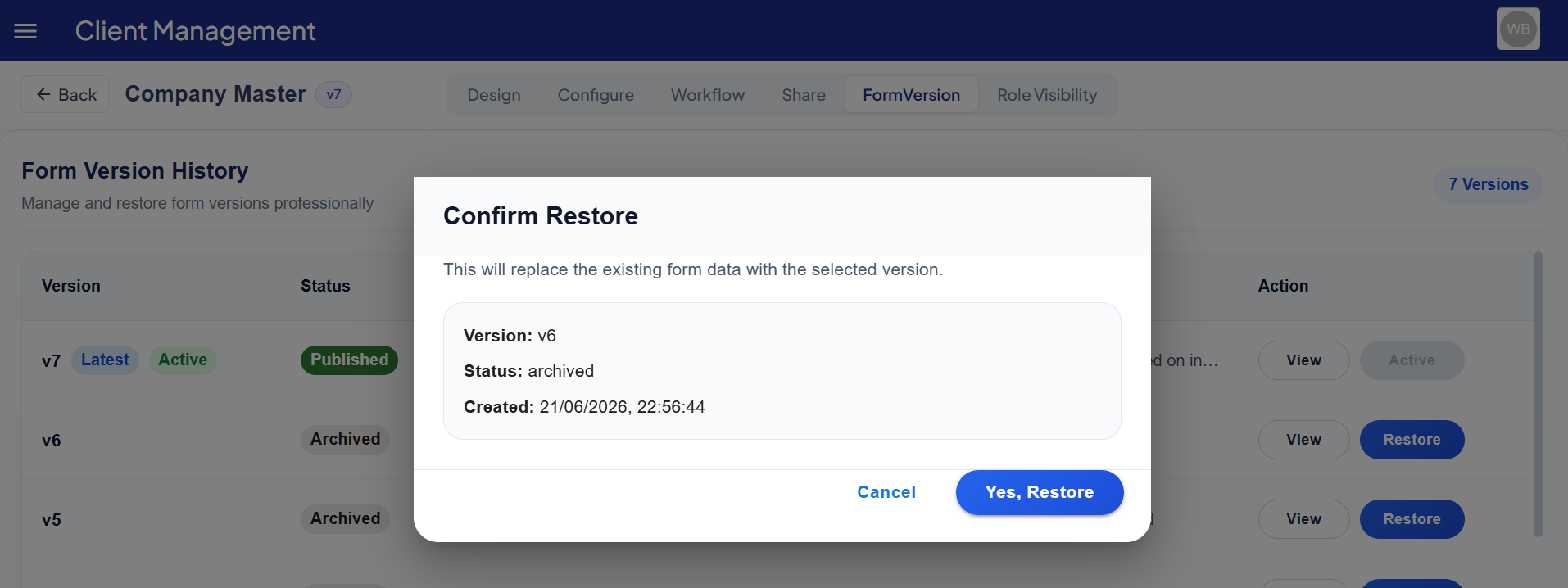
- Locate the version you want to restore in the table.
- Click the Restore button on that row.
- A confirmation dialog will appear showing the version details:
- Version number
- Status of that version
- Created date
- Click Yes, Restore to confirm.
What happens after restore
- The designer opens automatically with the selected version's components pre-loaded.
- You land on the Design tab, ready to review or further edit the restored layout.
- No data is permanently deleted — the current form state is not overwritten until you explicitly save in the designer.
Note: The Restore button is disabled (
Activestate) for the version that is currently live. You cannot restore to the version that is already active.
No Versions Available
If no version history exists for a form (e.g., a brand-new form that has never been published), the table displays:
No versions available
Versions are created automatically as the form moves through its lifecycle — saving a draft, submitting for approval, and publishing each generate a new version entry.
Quick Reference
| Action | How |
|---|---|
| Open version history | Navigate to your form → select the Versions tab |
| Preview a past version | Click View on any row |
| Close the preview | Click Close inside the preview dialog |
| Start a restore | Click Restore on a non-active row |
| Confirm the restore | Click Yes, Restore in the confirmation dialog |
| Cancel a restore | Click Cancel or close the confirmation dialog |
| Check the active version | Look for the Active badge in the Version column |
Example Scenario
A form was published as
v3. A subsequent edit introduced a broken field. The form currently showsv4as Latest and Active.To recover:
- Open Form Version History.
- Find
v3— it showspublishedstatus.- Click View to confirm
v3had the correct layout.- Click Restore → confirm in the dialog.
- The designer opens with
v3's components loaded — review and save to publish the fix.