Project Settings
Project Settings let Admins configure project-level behaviour, access, and identity. They are accessible from the Design Mode sidebar under the settings icon for a project.
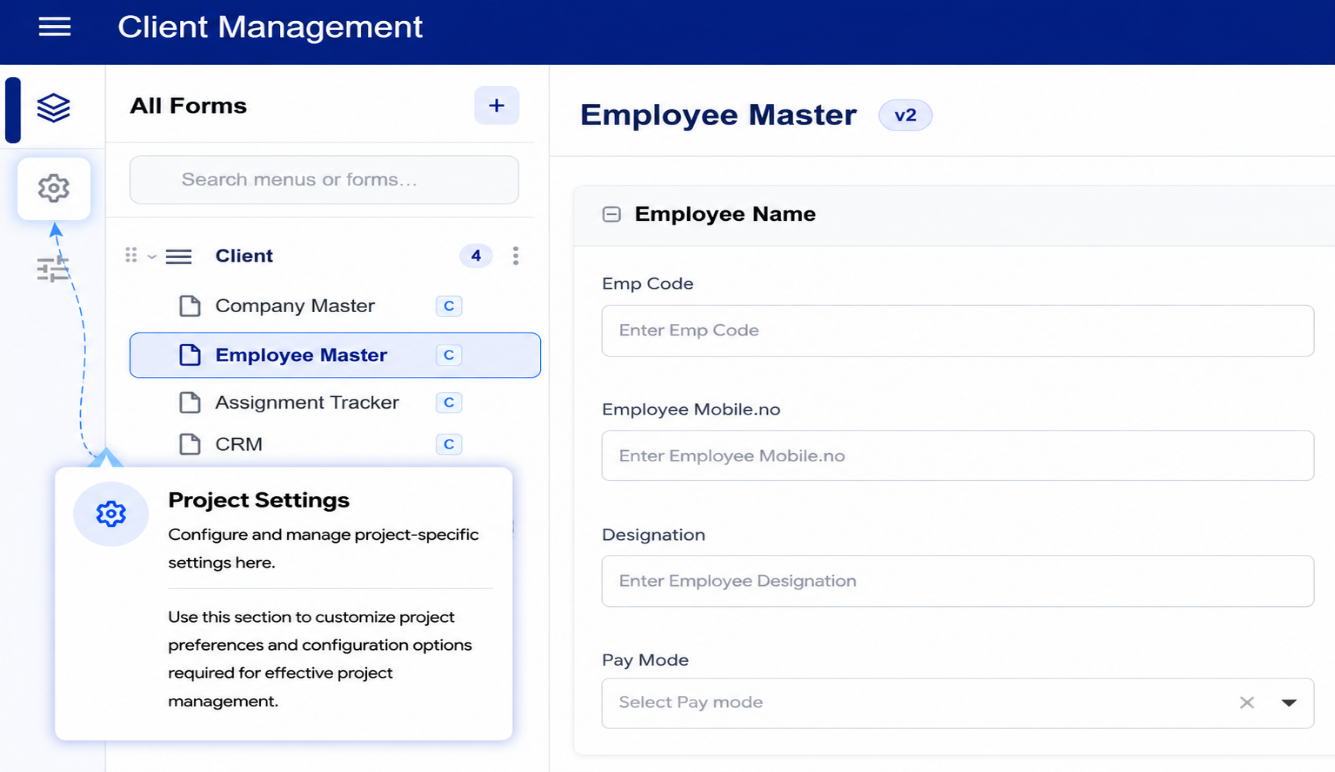
How to Open Project Settings
- Switch to Design Mode from the top bar.
- Open the project you want to configure.
- Click the Settings icon (gear icon) in the project sidebar.
- Select any section from the settings menu to begin configuring.
Available Settings Sections
| Section | Description |
|---|---|
| Menu Configurations | Choose the menu layout style and background colour for the project's User Mode navigation |
| Users | Invite users to the project, assign roles, and manage existing project members |
| Roles and Permissions | Create custom roles and define which actions each role is allowed to perform |
| UI Access Control List | Map roles to specific menus and forms to control what each role can see |
| Unique ID Configurations | Define auto-incrementing ID sequences with custom prefix and suffix for use in forms |
| External Users Signup | Enable a public signup URL so external users can self-register into this project |
Who Can Access Project Settings
Only users with the Admin role can view and modify Project Settings. Designers can access the project in Design Mode but do not have access to the Settings panel.