UI Access Control List
The UI Access Control List (ACL) controls which roles can see each menu and form in User Mode. It is a matrix of menus and forms on one axis, and roles on the other.
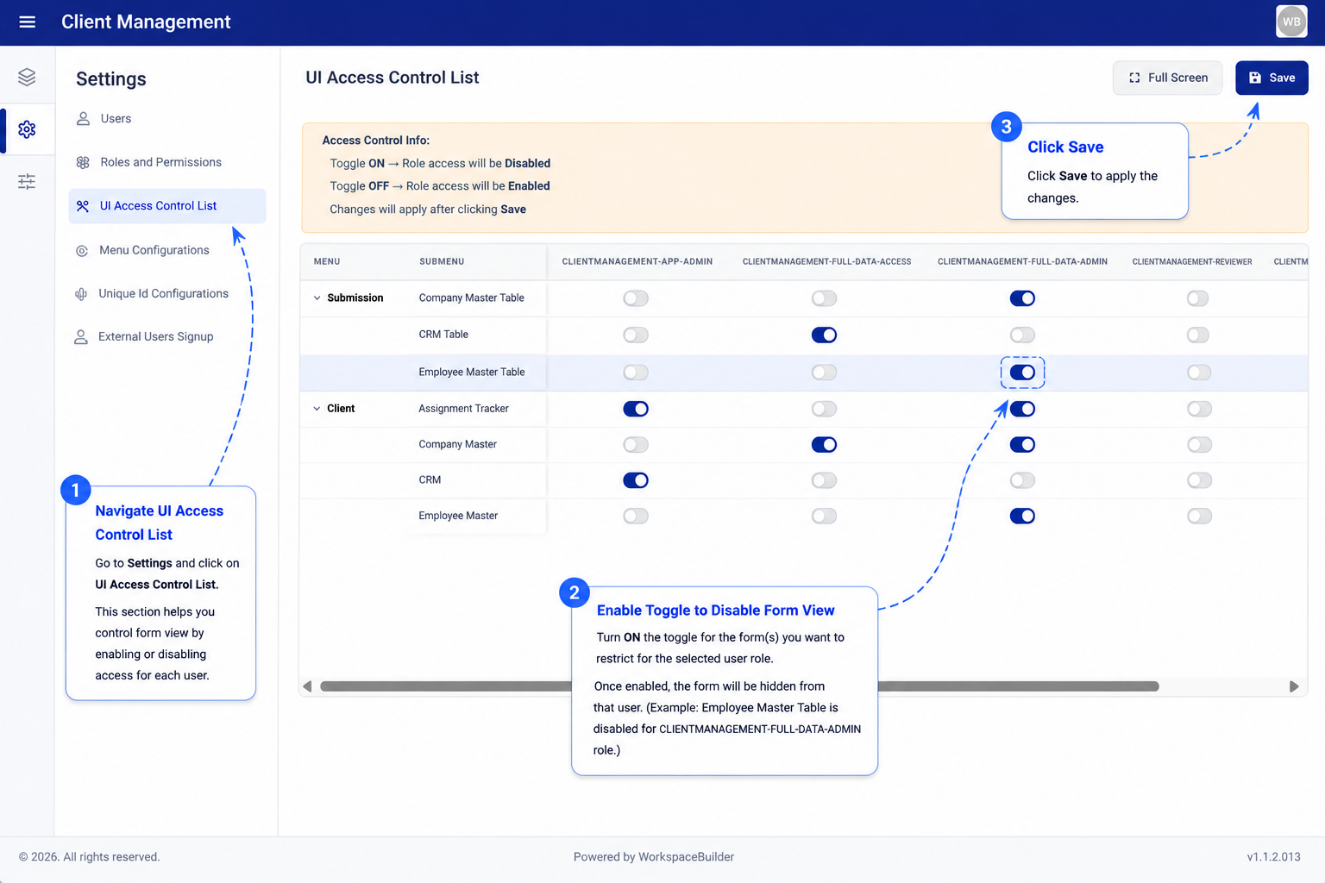
How It Works
Each row in the table represents a menu or a form within the project. Each column represents a role. A toggle switch in the intersection controls whether that role has access to that menu or form.
- Toggle ON — users with this role can see and access this menu or form.
- Toggle OFF — this menu or form is hidden from users with this role in User Mode.
Setting Access
- Locate the menu or form row you want to configure.
- Find the column for the role you want to grant or restrict.
- Click the toggle to switch access on or off.
- Click Save to apply all changes.
Access rules apply in real time after saving. Users in that role will see updated menus on their next page load or project open.
Collapsed Menu Groups
Menus with child forms can be collapsed to reduce visual clutter. Click the menu header to expand or collapse it. The collapse state is for display only and does not affect the saved access rules.
Fullscreen View
For projects with many menus and roles the table can be switched to Fullscreen mode using the fullscreen button in the top-right corner of the panel. This gives more horizontal space to work across a wide matrix.
Notes
- Roles must be created in Roles and Permissions before they appear as columns here.
- Menus and forms are populated from the project's current Menu Configurations and form list.
- If a user holds multiple roles, they can access a resource if any of their roles has it toggled on.